ShopSite Crop Circles Theme
Version Added: ShopSite Version 10
Color Options: Muted, Yellow, Orange, Red, Pink, Purple, Blue, Ocean Blue, Green
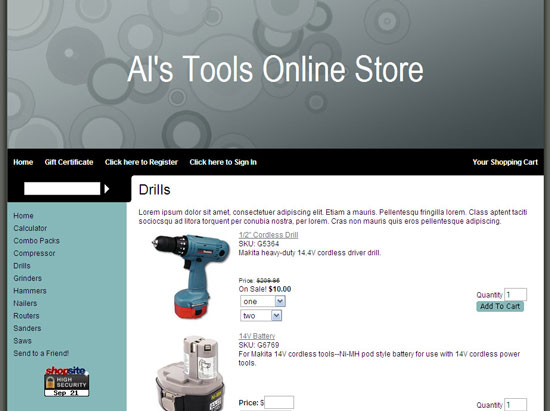
The Crop Circles Theme is great if you are just starting out and do not yet have a store header. This theme will take your store name and put it big and bold in the header field with a circle textured background. This theme also displays the product cross-sell items on the product more information pages.
Theme Colors & Backgrounds
Colors and background images for this theme can be modified under Preferences > Layout Settings.
- Text Color - used only as the text color.
- Background Color - used as the main body background color.
- Link Color - used as the hover color for links on the top navigation bar.
- Visited Link Color - used as the background color of the left navigation bar, as well as the background color for the buttons.
- Active Link Color - used as the background color for the header and footer sections of the page.
- Table Shade Color - used as the table shade color in the shopping cart.
- Background Image - will override the main body background color if used.
Subproducts
The Crop Circle Theme displays subproducts different than other ShopSite themes. Subproducts are displayed in a pull down menu. If you would like the parent product to be listed in the pull down menu as well, you can add the parent product as a subproduct of itself. This will make is so that the parent product is listed in the pull down menu along with the subproducts. An example of this can be seen below. Each of the options within the pull down menu is it's own product.
Not using this theme but want to have your subproducts displayed how the Crop Circle theme displays them? Click here to learn how you can add this subproduct feature to your custom template.
Theme Files
- CropCircles.sst - page template used for the Crop Circle theme.
- Congruence-Product.sst - product template used for the Congruence theme as well as the Crop Circles theme.
- CropCircles-GiftCert.sst - gift certificate template for the Crop Circles theme which controls how the gift certificate ordering page looks, how the gift certificate email receipt looks, and how the printable email receipt within the back office looks.
- Texturize-TellAFriend.sst - tell a friend template for the Texturize theme as well as the Crop Circles which controls how the tell a friend pop up looks, as well as how the tell a friend email looks.
- CropCircles-Cart.sst - shopping cart template for the Crop Circles theme which controls how all the pages of the shopping cart look, how the order email receipt looks as well as how the cross sell items are laid out on the shopping cart screens.
- CropCircles-cr.sst - customer registration template for the Crop Circles theme which controls how all of the customer registration screens look, as well as how the customer registration emails look.
- CropCircles-Search.sst - search template for the Crop Circles theme which controls the layout of the search results screen.
- search_link - default link template for page links on the search results screen.
- CurvedSearchProductTemplate.sst - product template which is used by a few themes including the Crop Circles theme to control how the products appear on the search results screen.
- CropCircles-cart.css - include file with CSS for the shopping cart screens and controlling elements on those screens only.
- CropCircles-Colors.sst - include file which assigns the appropriate header image to the color scheme it goes with.
- CropCircles-crHeader.sst - include file containing the code for the top of the customer registration screens including starting the form, pulling CSS and creating the HEAD section.
- CropCircles-crFooter.sst - include file containing the code for the bottom of the custom registration screens including ending the form and closing the BODY and HTML.
- CropCircles-MoreInfoPage.sst - include file which controls how the more information page looks.
- CropCircles.css - include file containing the general CSS for this template used on all screens.
Additional Template Options
The Crop Circles theme does have header images which are built in. However, for those merchants who would like to change the header in the Crop Circles theme you can upload a new image. Once you have uploaded your image (approximately 900px wide and 250px high) you can set that image as your background image (for example, with pages you would go to Pages > Edit Page Layout and specify the background image there). The background image you set will replace the default Crop Circles header image. If you like one of the images below you can click the link to get the full size image to save in your store. For PC users you would right click on the larger image, and then click "Save As." This will allow you to save the image on your computer. You can then upload the image into your ShopSite store and set it as the background image for your website.
The second way to add your own image to the top of all pages would be to put that image in the header field. You can do this by going to Preferences > Page Header/Footer, and entering the HTML for your image into the header field provided.